
.jpg)


What is Clash Detection in BIM?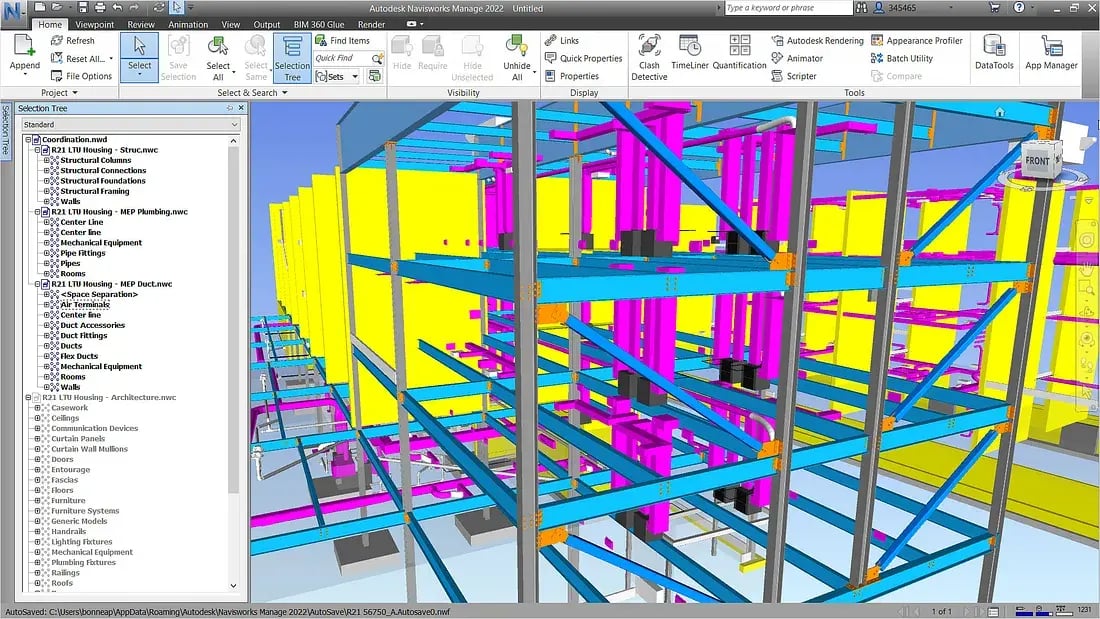
Clash detection in BIM is a process that identifies and resolves potential conflicts within a 3D model before construction begins, preventing costly reworks and delays. It involves analysing the spatial relationships between various elements to ensure they don't interfere with each other. Historically, this process involved manually reviewing technical drawings. However, with the introduction of BIM technology, clash detection has become significantly more efficient and precise.
Detecting clashes in BIM designs has become a standard practice in the AEC (Architecture, Engineering, and Construction) industry. By leveraging its power, architects and civil engineers can develop virtual 3D models of proposed buildings, overlaying various disciplines like structural, architectural, electrical, and plumbing systems. This enables comprehensive clash detection, enabling the team to collaboratively identify, flag, analyse, and resolve conflicts.
1. Types of Clashes
1. Hard Clashes: These occur when more than one building element occupies the same space or overlaps other building elements. For example, a duct running through a beam.
2. Soft Clashes: These involve spatial or clearance issues where elements don't physically collide but are too close to one another, violating the required buffer space. For example, insufficient clearance around HVAC (Heating, Ventilation, and Air Conditioning) equipment for maintenance access.
3. Workflow Clashes: These happen when scheduling or sequencing issues arise, such as when different teams' tasks overlap, causing potential delays or workflow disruptions.
What is Autodesk Navisworks?
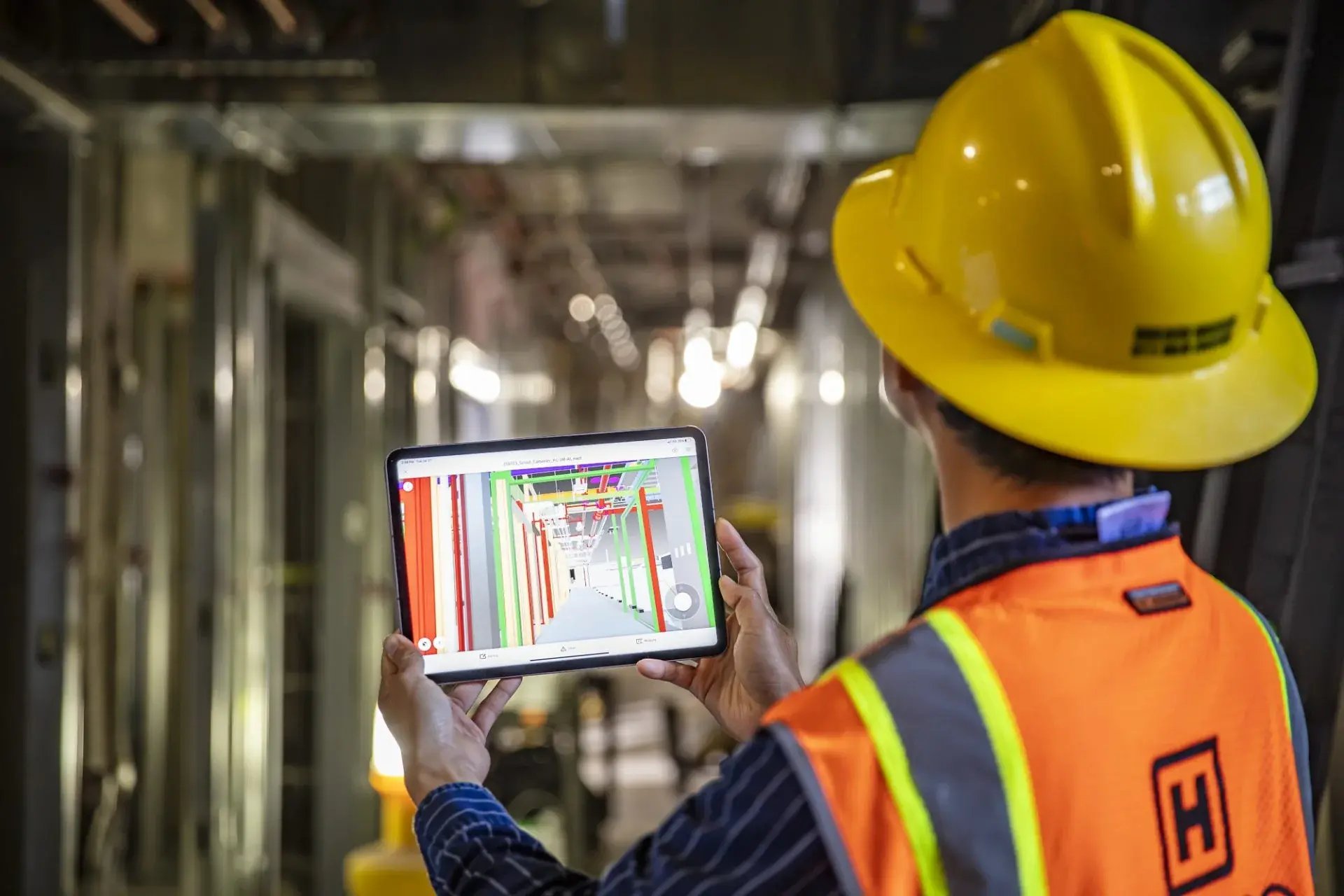
Navisworks is a powerful project review software that helps professionals in the architecture and construction industry improve their collaboration and data management. It lets modellers from all disciplines, stakeholders, and clients review the design quality and fix mistakes, if any, before entering the construction phase. Formerly known as "Jetstream," this software by Autodesk allows users to review, annotate, animate, and even render models to improve the work quality. Although it can be used separately, the software is most effective when used with other BIM/CAD applications, such as Revit and AutoCAD.
1. Features of Navisworks
- Effortless navigation within complex 3D models with customisable viewpoints
- Provides tools for quantification, analysis, and data measurements
- Compatibility to work with a wide variety of file formats
- Real-time construction simulation to update all participants on potential on-site issues
- Export capability to combine all project disciplines into a single file
- Advanced rendering using both in-house and online engines
- Accurate estimation of material quantities, building areas, and various other components
- Animation creation to visualise the construction process
- Early-stage clash detection between elements and disciplines, saving time and costs
- Ability to append and merge multiple 3D models
- Real-time collaboration with access to various departments and participants
2. Different Navisworks File Types
Navisworks offers powerful features tailored to various project needs and is available in three distinct versions. Each version includes features such as viewing, clash detection, project management, scheduling, and simulation. Access to specialised features may require an additional fee. Below is an overview of Navisworks' three main versions:
1. Navisworks Freedom: A free viewer for NWD and DWF files, allowing all project stakeholders to view and explore the integrated model without editing capabilities. It is an ideal starting point for those entering the domain with basic viewing needs.
2. Navisworks Simulate: This balanced version provides advanced project review, visualisation, 4D simulation, and quantification tools. It costs less than the complete version but lacks more advanced and necessary features, such as Navisworks clash detection.
3. Navisworks Manage: Includes all features of Navisworks Simulate, with enhanced capabilities for comprehensive clash detection and coordination. This version may cost more, but it offers the most extensive features, which makes it easier to work on complex projects.
Benefits of BIM Clash Detection in Navisworks
Navisworks enables teams to identify and resolve conflicts in a virtual environment. It provides a comprehensive project view and facilitates better coordination and collaboration. The following are some benefits of Navisworks for BIM clash detection:
1. Improves Design Quality
Navisworks clash detection exposes design issues in the virtual model instead of on site, so architects and engineers can refine layouts, routing, and clearances until the design is buildable and safe.
2. Resolves Risks and Improves Productivity
Early BIM clash detection reduces safety risks and last-minute changes, helping teams plan work more clearly and avoid interruptions that slow down overall productivity.
3. Saves Time and Cost
By catching clashes before construction, Navisworks cuts down on rework, site delays, material waste, and change orders, which keeps projects closer to schedule and budget.
4. Enhances Planning and Coordination
Federated models in Navisworks give all disciplines one shared view, so structural, architectural, and MEP teams can coordinate decisions and sequence work more effectively.
5. Optimizes Communication
Clear clash views, comments, and reports make it easier for stakeholders to understand issues, agree on solutions, and make faster, better-informed decisions.
6. Streamlines Collaboration
Assigning clashes to specific trades inside Navisworks or connected platforms (like BIM 360) supports a structured, trackable workflow from detection to resolution.
Also Check out: Top 5 Navisworks Courses to Learn as Architects and Engineers in India
How to Run Clash Detection in Navisworks?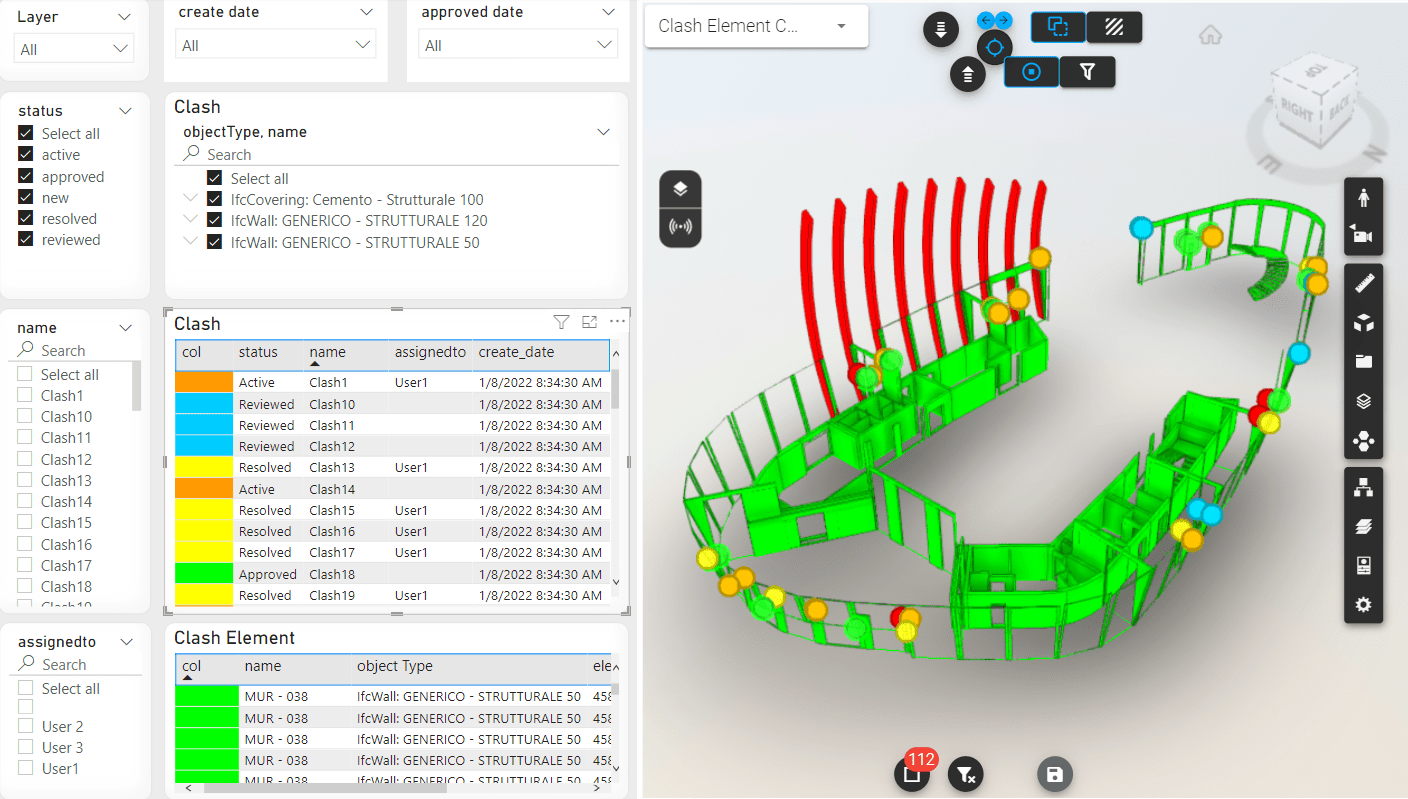
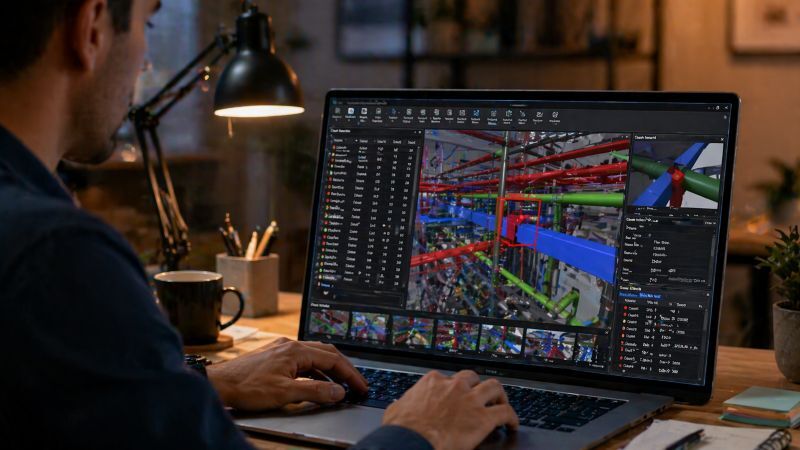
Running clash detection in Navisworks involves several steps to ensure accurate identification and resolution of conflicts in your 3D model. Here's a step-by-step guide on how to do clash detection in Navisworks:
1. Import Models
Open Navisworks and import the 3D models you want to check for clashes. Navisworks supports a variety of file formats, so ensure all relevant models are included.
2. Set Up Clash Detection
Click on the “Home” tab and pick the “Clash Detective” tool. In the Clash Detective dialogue box, click on the “Add Test” button to create a new clash test.
3. Define Test Parameters
Name your clash test for easy identification. Choose individual elements or sets to test for clashes. You can choose from predefined sets or create custom sets based on your needs.
4. Run the Clash Test
Select the “Run Test” button to begin the clash detection process. Navisworks will analyse the models and identify any clashes between the selected elements.
5. Review Clash Results
Go to the "Results" tab to see the list of detected clashes. Click on each clash to zoom in and visually inspect the conflict within the 3D model.
6. Classify and Assign Clashes
Classify each clash as “Approved,” “Resolved,” or “Reviewed” based on your project’s workflow. Assign clashes to specific team members or disciplines for resolution.
7. Generate Clash Reports
Choose the “Report” tab to generate a clash report. Customise the report format and content as needed, then export it in your preferred format (e.g., PDF, HTML, XML).
8. Collaborate and Resolve
Share the clash report with relevant stakeholders to facilitate collaborative resolution. Update the models based on feedback and re-run the clash detection to ensure conflicts are resolved.
How to Create a Clash Report in Navisworks?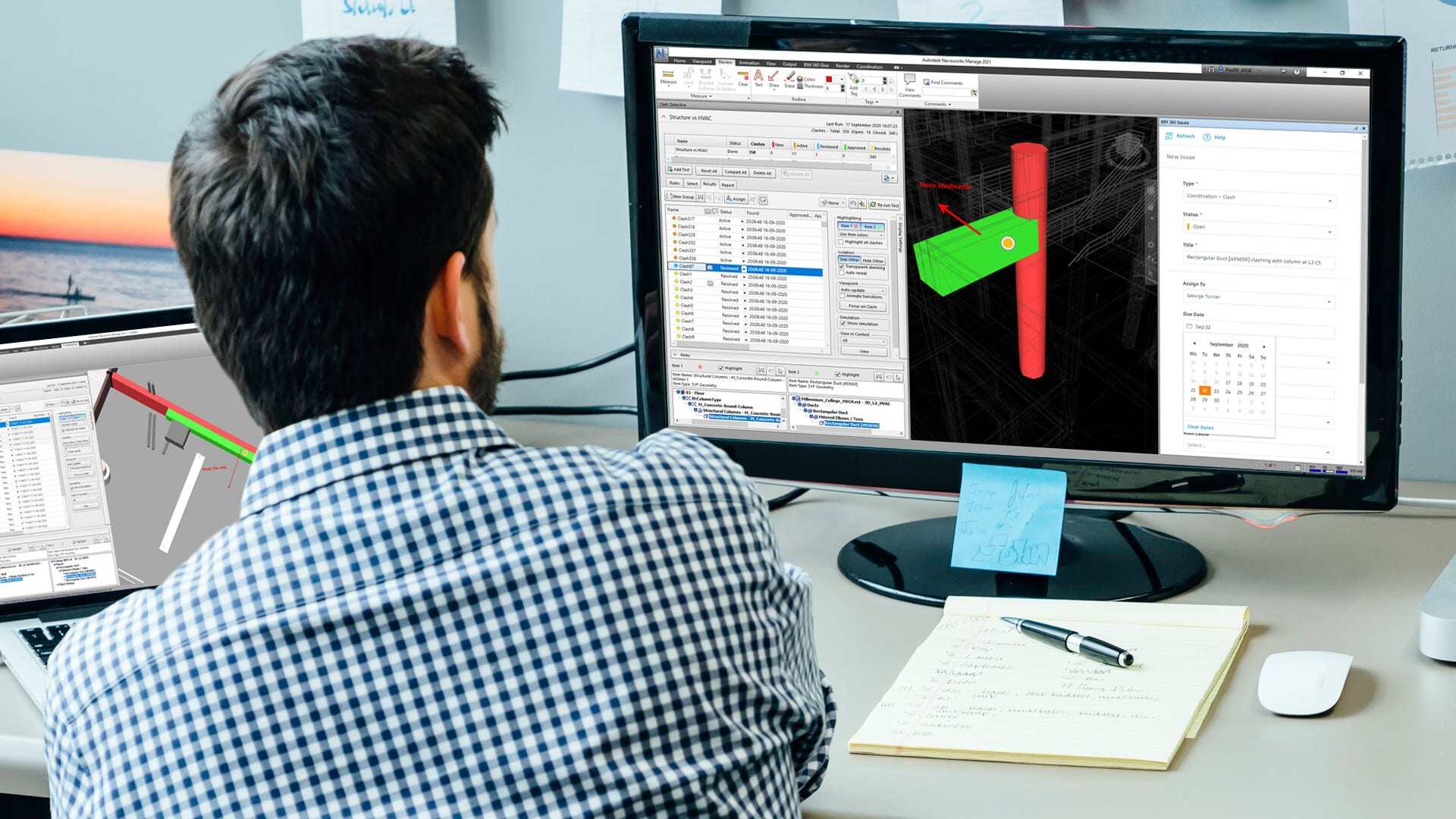
Let us now understand how to create a Navisworks clash detection report:
1. Run a Clash Test
- Open your Navisworks project
- Go to the "Clash Detective" tab
- Set up your clash test by selecting the elements you want to check
- Select the "Run Test" option to perform the clash detection
2. Open the Clash Detective Tab
-
Go to the "Clash Detective" tab in the ribbon
3. Select Clashes for the Report
-
Go to the "Results" tab in the Clash Detective window
-
Select which clashes you want to include in your report
-
You can select individual clashes or use filters to select groups of clashes
4. Access the Report Function
-
Select the "Report" button in the Clash Detective ribbon
-
This will lead you to the "Clash Report" dialogue box
5. Choose Report Format
-
In the "Clash Report" dialogue, select your preferred formats such as HTML, XML or TXT
6. Select Report Content
Choose all the information you wish to include in your report:
-
General information (project name, date, etc.)
-
Clash properties (ID, status, distance, etc.)
-
Images of clashes
-
Comments and assignments
-
You can customise the level of detail for each section
7. Select Report Location
-
Choose where you want to save the report on your computer or network
8. Generate and Review
-
Click "Create Report" to generate the clash report
-
Once generated, open and review the report to ensure all necessary information is included
Also Check out: From Beginner to Expert: How BIM Civil Courses Can Advance Your Career
Navisworks Plugins for Clash Detection
Several plug-ins enhance Navisworks' capabilities, making it an even more powerful tool. Here are some of the most frequently used Navisworks plug-ins:
1. iConstruct
Enhances BIM workflow with advanced model conditioning, data management, and collaboration tools. It includes features for clash detection, reporting, and custom export options.
2. BIM 360 Issues
Integrates BIM 360 with Navisworks for better issue management, allowing users to create and track issues directly within the Navisworks environment.
3. Dynamo for Navisworks
Adds Computational Design capabilities, enabling users to automate repetitive tasks and create custom workflows through visual programming.
4. Clash Detective
Extends Navisworks' built-in clash detection tools, providing advanced options for clash management, reporting, and resolution.
5. Tekla BIMsight
Facilitates collaboration between Navisworks and Tekla models, improving coordination and clash detection for structures and MEP (Mechanical, Electrical, and Plumbing) systems.
Best Practices for Clash Detection in Navisworks
- Comprehensive Training: Provide thorough training to the team on the functionalities of BIM clash detection tools to maximise their potential.
- Structured Data Management: Adopt a systematic approach to data management by filtering, categorising, and prioritising information to prevent data overload.
- Stay Updated with Industry Trends: Stay informed about the latest developments in the AEC industry and advancements in BIM tools to enhance project efficiency and effectiveness.
Navisworks Clash Detection Tips
1. Organise Models Before Clash Detection: Ensure that your models are well-organised and clean before running clash detection. Proper naming conventions and categorisation make it easier to identify and manage clashes.
2. Use Selection Sets and Search Sets: Create selection sets and search sets to group elements logically. This helps in targeting specific areas for clash detection and reduces the complexity of the results.
3. Customise Clash Tolerance: Adjust the clash tolerance settings to suit the project's requirements. Setting appropriate tolerances can help filter out minor clashes that may not be significant.
4. Assign Clashes for Resolution: Assign clashes to specific team members or disciplines for resolution. Clear assignment of responsibility ensures that clashes are addressed promptly.
5. Visualise Clashes in 3D: Use the 3D visualisation capabilities of Navisworks to view and understand clashes in the entire model context. This helps in assessing the impact of clashes and developing effective resolutions.
Way Forward
Navisworks clash detection sits at the heart of modern BIM coordination, helping teams find conflicts early, plan smarter, and protect both time and budget on complex projects.
If you want to go beyond basic navigation and truly master BIM clash detection with Navisworks and Revit, structured training can fast-track your growth. The BIM Professional Course for Architects by Novatr covers model setup, coordination, clash workflows, and real-world capstone projects so you can step into BIM roles with confidence.
Visit our Resources Page to explore BIM, industry-relevant tools, and AEC industry career opportunities!
FAQs
1. Is Navisworks good for clash detection?
Yes, Navisworks Manage is one of the most commonly used tools for BIM clash detection, thanks to its Clash Detective module, support for many file formats, and strong reporting and coordination features.
2. What file formats does Navisworks support?
Navisworks can read and federate many formats, including RVT, DWG, DGN, IFC, NWD, NWF, NWC, and several others from structural and plant design tools, which makes it ideal for multi-discipline coordination.
3. How do you run a clash test in Navisworks?
To run a clash test, append your models, open Clash Detective, add a test, choose the two model sets to compare, set tolerances, click Run Test, then review, assign, and report on the clashes.
4. What are the types of clashes in BIM?
The main BIM clash types are hard clashes (physical overlaps), soft clashes (clearance issues), and workflow clashes (time or sequencing conflicts between trades and tasks).
5. Which plugins improve Navisworks clash detection?
Popular add-ons that extend Navisworks clash detection workflows include iConstruct, BIM 360 Issues, and Dynamo for Navisworks, along with the built-in Clash Detective and integrations with tools like Tekla.