




What are the most common errors users face in SketchUp?
Most SketchUp errors aren't random, but predictable, repeatable, and completely fixable. Let's walk through the most common issues users face and answer every burning question along the way.
1. Setup and Configuration Errors
Working in the Wrong Units
If the dimensions of your model look completely off, your units may not be configured correctly. Knowing how to change units in SketchUp is one of the first things every user should learn. Go to Window > Model Info > Units and select your preferred measurement system (inches, millimetres, meters), depending on the demands of your project. While you're there, you can also set precision levels and toggle angle snapping. This is essentially the same process as how to set units in SketchUp.
Downloading and Installing SketchUp Correctly
If you're wondering how to download SketchUp for free, visit the official SketchUp website and use SketchUp Free. This is a browser-based version that requires no installation. For more advanced features, SketchUp Go or Pro offers a trial period. Once installed, the next common issue is extensions. If you're figuring out how to install SketchUp plugins, the easiest way is through the Extension Warehouse (found under the Extensions menu). Search for what you need, click install, and restart SketchUp. For manually downloaded plugins, use Extension Manager > Install Extension and browse to your file.
2. Modelling Errors
Scaling Issues
Incorrect sizing is one of the most common issues users face. If you're unsure how to scale in SketchUp, select your object, grab the Scale tool (shortcut: S), and drag the handles. Hold Ctrl to scale from the centre, or type a specific value like 2 for double the size or 0.5 for half. For precise scaling of imported models or components, you can also use the Tape Measure tool to resize the entire model proportionally.
Making a Sphere
SketchUp doesn't have a one-click sphere tool, which can be confusing for many new users. Here's how to make a sphere in SketchUp: Draw a circle, then draw another circle perpendicular to it on the same centre point. Use the Follow Me tool and select the face of the smaller circle, activate Follow Me, then click the path circle.
Copying Objects
Learning how to copy in SketchUp is imperative. All you have to do is select your object, activate the Move tool (M), hold down Ctrl, and drag to place your copy. Type a distance value for precision. If you want multiple copies in a row, after placing one copy, type 5x for five copies evenly spaced.
3. File Management
How to Reduce SketchUp File Size
Knowing how to reduce SketchUp file size can significantly improve performance. Start by purging unused files (explained below). Then, audit your model for overly detailed components. Also, avoid importing high-resolution images as textures when a smaller file size will do.
Purging Unused Components and Materials
Over time, SketchUp files accumulate a large number of unused components, materials, and styles that silently make your file heavy. This is exactly how to purge in SketchUp: Go to Window > Model Info > Statistics, then click Purge Unused. Do this regularly, and you'll notice a significant improvement in file size and performance.
4. Organisation & Visibility Issues
Ungrouping Components and Groups
Understanding grouping helps you regain control of your model. To understand how to ungroup in SketchUp, select the group or component, right-click, and choose Explode. This breaks it apart into raw components. However, exploding a component that's used multiple times in your model will affect all instances. If you only want to edit one, double-click to enter the group context instead.
Unhiding Hidden Objects
Hidden objects can be confusing, especially when something disappears, and you can't figure out where it went. Here's how to unhide in SketchUp: Go to Edit > Unhide > All to reveal everything that's been hidden in the current context. If you're inside a group or component, make sure you're in the right editing context first. You can also turn on View > Hidden Geometry to see dotted outlines of hidden faces, which helps you identify issues.
Cutting Sections Through Your Model
Sectioning is one of SketchUp's most powerful features for presenting interior spaces. If you're exploring how to cut a section in SketchUp, here's the quick version: Go to Tools > Section Plane, click to place it on any surface or plane in your model, and SketchUp will instantly slice your model open. You can move, rotate, and even hide the section plane while keeping the cut visible. It's ideal for architectural drawings and client presentations.
5. Rendering: Taking Your Model to the Next Level
How to Render in SketchUp
If you're looking into how to render in SketchUp, or specifically wanting to know how to do a SketchUp render, the answer is that SketchUp doesn't have a built-in photorealistic renderer. Instead, it integrates with third-party rendering engines. The most popular options include V-Ray, Enscape, Lumion, and KeyShot. Each one installs as a plugin and adds a render panel directly into your SketchUp toolbar. Set up your materials, lighting, and camera, then hit render.
How can slow performance and lag issues be fixed?
Lag is one of the most common complaints among users of this SketchUp 3D modeling software.
The most effective starting point is cleaning up your SketchUp file. Purge unused components, materials, and styles regularly through Window > Model Info > Statistics > Purge Unused. Next, take a detailed look at your SketchUp 3D models. Components like detailed furniture or landscaping elements are usually the biggest performance killers. Swap them out for lighter alternatives wherever possible.
Your SketchUp plugins can also be part of the problem. Too many active extensions slow down startup and general performance. Disable any SketchUp tools and plugins you aren't actively using through the Extension Manager.
When it comes to SketchUp rendering software and SketchUp render workflows using tools like Easy Render for SketchUp, V-Ray, or Enscape, avoid running renders on the same machine while actively modelling. This splits your system's resources and drags everything down.
Finally, keep your graphics drivers updated and make sure SketchUp is using your dedicated GPU (Graphics Processing Unit) rather than integrated graphics.
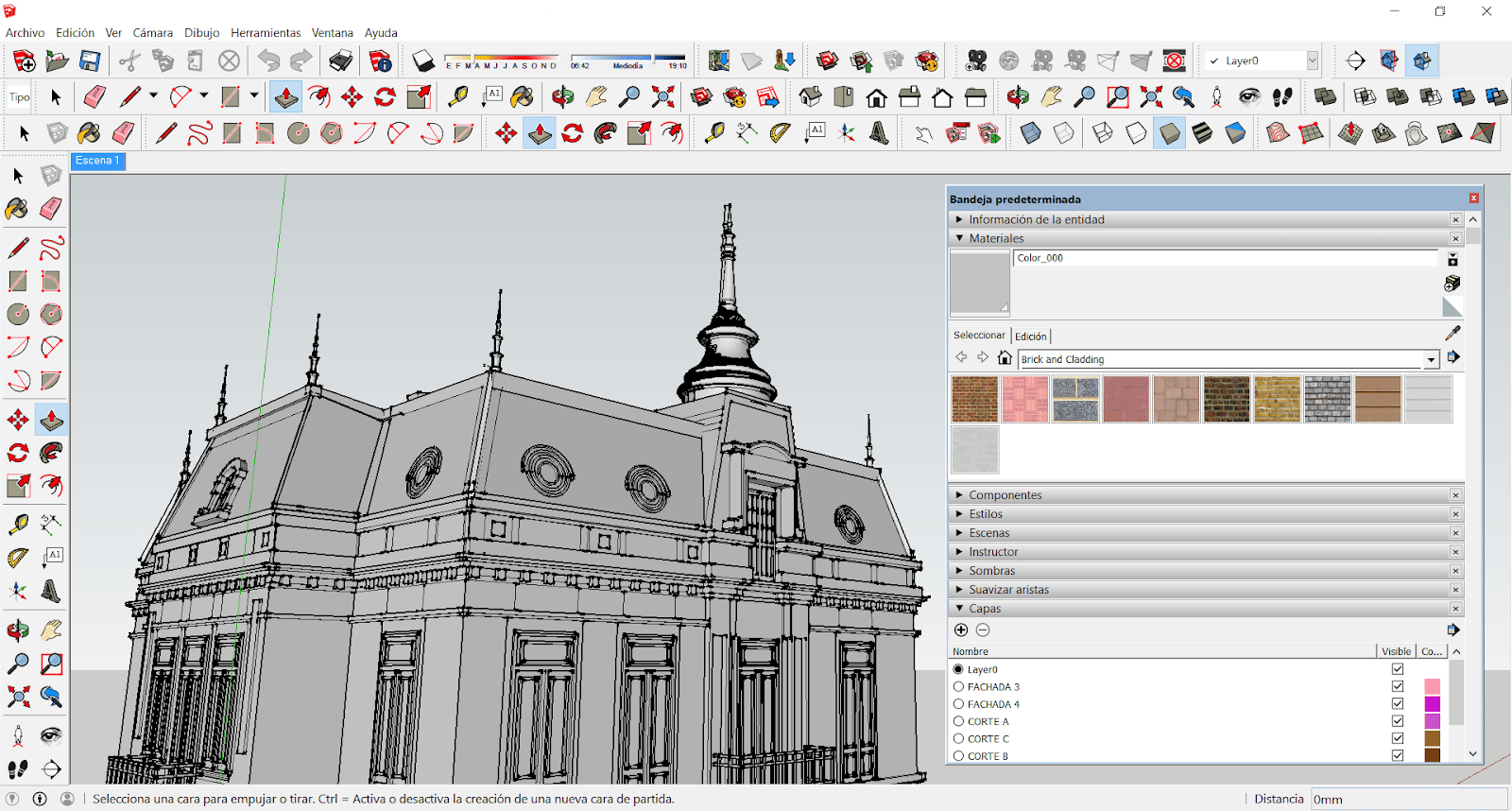
How do you resolve import and export compatibility problems?
Import and export issues are a common source of frustration, especially when you're collaborating with others or moving your SketchUp 3D models between different platforms and software.
The most frequent issue is a file format mismatch. SketchUp 3D software originally uses the .skp format, but not every platform speaks that language. When sharing files with clients or colleagues using AutoCAD, Revit, or other tools, always export in a compatible format; .dwg, .dxf, or .ifc are usually the safest. Go to File > Export > 3D Model and choose accordingly.
When importing external geometry into your SketchUp file, oversized or overly detailed assets can be an issue. SketchUp 3D models downloaded from third-party libraries often include unnecessary geometry that bloats your file and triggers compatibility errors. It’s best to always inspect and clean imported assets before integrating them into your main model.
SketchUp plugins can also bridge compatibility gaps. Extensions like Transmute or SimLab Composer handle complex file conversions that SketchUp can't manage natively. These are some of the important plugins for SketchUp.

What causes extension conflicts, and how can they be managed?
Extensions are what make SketchUp a truly powerful design platform, but if you stack too many together without care, they can cause crashes and freezes.
The root cause is usually simple. SketchUp plugins are built by different developers targeting different software versions. When outdated extensions clash with your current SketchUp 3D software, or when too many SketchUp tools compete for the same resources, conflicts become inevitable.
The fix is to start auditing everything through Window > Extension Manager. Disable what you don't actively use, then re-enable extensions one at a time to pinpoint the troublemaker. Always source your important plugins for SketchUp from trusted platforms like the official Extension Warehouse.
For SketchUp rendering software extensions like Easy Render for SketchUp, V-Ray, or Enscape, always verify version compatibility before updating either the plugin or the core software. Updating one without the other is what causes lags.