---
title: Keyboard Shortcuts and Productivity Hacks in BIM 360 2026
description: Explore the most useful shortcuts in BIM 360, how to improve navigation, document management, automation, and more.
image: https://blog.novatr.com/hubfs/Keyboard%20Shortcuts%20and%20Productivity%20Hacks%20in%20BIM%20360.png
---
[Blogs](https://www.novatr.com/learning-hub)
- [Architecture & Construction](https://www.novatr.com/learning-hub?category=Architecture+%26+Construction)
- [BIM](https://www.novatr.com/learning-hub?category=BIM)
- [Computational Design](https://www.novatr.com/learning-hub?category=Computational+Design)
- [Company News](https://www.novatr.com/learning-hub?category=Company+News)
- [Expert Talks](https://www.novatr.com/learning-hub?category=Expert+Talks)
Explore Courses
[Just Launched  BIM Professional Program v.2026 Take your career to the next level by mastering the real-world application of BIM. Know More](https://www.novatr.com/courses/bim-professional-program)
[ Master Computational Design Course Break into an advanced career by learning to apply the power of computation to the art of design. Know More](https://www.novatr.com/courses/computational-design)
[Blogs](https://www.novatr.com/learning-hub)
Explore Blogs
- [Architecture & Construction](https://www.novatr.com/learning-hub?category=Architecture+%26+Construction)
- [BIM](https://www.novatr.com/learning-hub?category=BIM)
- [Computational Design](https://www.novatr.com/learning-hub?category=Computational+Design)
- [Company News](https://www.novatr.com/learning-hub?category=Company+News)
- [Expert Talks](https://www.novatr.com/learning-hub?category=Expert+Talks)
Courses
- [BIM Professional Program v.2026](https://www.novatr.com/courses/bim-professional-program)
- [Master Computational Design](https://www.novatr.com/courses/computational-design)
- [Archi/](https://www.novatr.com/learning-hub?category=BIM)
Featured Article
# Keyboard Shortcuts and Productivity Hacks in BIM 360

Harshita Chaudhary
April 8, 2026
7 min read

If you've ever lost time clicking through endless menus in BIM 360, you’re not alone. The good news? A few smart keyboard shortcuts and productivity tips can completely transform your BIM 360 workflow.
From managing files in BIM 360 document management to collaborating in real time through BIM 360 collaboration, the right shortcuts keep your team moving without friction. There's a faster and more efficient way to do almost everything.
For architects and project leads alike, mastering BIM 360 tools means less time navigating and more time building. Once you understand what BIM 360 is truly capable of, tapping into its features feels less like work, and that’s where the real benefits begin.
So, let’s get into the keyboard shortcuts to increase productivity with BIM 360.
Unlock High-Paying Careers With BIM
Master BIM workflows, software and skills on real projects.
Apply Now
\*Limited seats available
## What are the most useful keyboard shortcuts in BIM 360?
BIM 360 is packed with functionality, but constantly navigating menus takes time you could spend on meaningful project work. Here are some of the best keyboard shortcuts in BIM 360 that will help you avoid that:
- **Ctrl + S**: Saves work instantly
- **Ctrl + Z / Ctrl + Y**: Undo and redo actions without breaking your focus.
- **Ctrl + F**: Quickly search for files or elements within BIM 360 document management.
- **Spacebar**: Pan across your model view effortlessly.
- **Scroll Wheel**: Zoom in and out in design and markup views.
- **Escape (Esc)**: Exit any active tool or dialogue instantly.
- **Ctrl + Click**: Select multiple elements simultaneously for batch actions.
- **F11**: Toggle full-screen mode for distraction-free model reviews.
These might seem simple, but string them together throughout a busy project day and you'll be surprised how much time you reclaim. Most of these shortcuts work well across different modules, so whether you're deep in a design review or coordinating with your team, BIM 360 keeps things moving at your desired pace.
## How do shortcuts improve navigation and document management speed?
Navigation is one of the most underrated aspects of working in BIM 360. Without the keyboard shortcuts mentioned above, users often spend significant time clicking through documents. This time could be utilised and directed toward more critical project tasks.
### **1. The Document Management Challenge**
Projects typically involve multiple drawings, RFIs (request for information), submissions, and reports. Without quick-access commands, locating the right file requires going through multiple folder layers. Shortcuts like Ctrl + F for instant search and Ctrl + Click for multi-selecting files significantly reduce the time spent on routine document retrieval within BIM 360 document management.
### **2. Faster Navigation, Better Decisions**
The speed at which you can navigate directly influences decision-making quality. How? When team members can pull up documents, cross-reference sheets, or access markups quickly, project reviews become more focused and errors are less likely to slip through.
### **3. The Team-Wide Impact**
The cumulative effect of navigating through a project seamlessly across a team is significant. When every member of the team works efficiently within the platform, the overall BIM 360 workflow becomes more structured and responsive. This reduces bottlenecks and keeps project timelines on track.
Some of the most important shortcuts are as follows:
### **4. For Measure Tool**:
Lock shortcuts keep the measure direction fixed (X axis, parallel to surface, etc.)
Lines change color to indicate the active lock type
Switch between locking modes when measuring multiple points using the shortcut keys
### **5. For better navigation**:
Ctrl + Click - Add/remove individual elements from selection
Ctrl + Drag - Window-select multiple objects
### **6. For Section Plane**:
Right-click a selected object → choose Section Plane to align the plane to a face
Use Section Box to enclose a group of selected objects
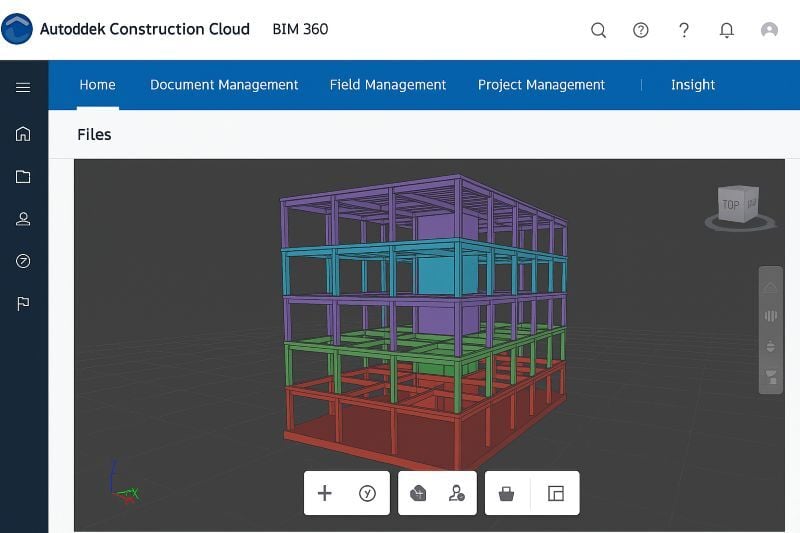
## What productivity hacks streamline issue tracking and clash review?
Issue tracking and clash detection are two of the most time-sensitive parts of any construction project. With BIM 360, however, several built-in productivity hacks help teams manage both without losing time to repetitive manual processes.
### **1. Streamlining Issue Tracking**
One of the most practical BIM 360 features is the ability to assign, filter, and track issues directly within the platform. Rather than toggling between spreadsheets and threads, teams can:
- Use saved filters to instantly surface high-priority or unresolved issues
- Set automated notifications so the right people are alerted without manual follow-up
- Use bulk actions to update or close multiple issues simultaneously
These small features that are built into BIM 360 project management keep accountability and timelines clear.
### **2. Accelerating Clash Review**
Clash detection is where most time is lost, especially on complex, multi-disciplinary projects. Hence, understanding how to work faster in BIM 360 during clash review comes down to a few key habits:
- Group clashes by discipline before review sessions to keep discussions focused
- Use keyboard shortcuts to navigate between clash instances rather than manually selecting each one
- Apply clash filters to single out critical conflicts from minor ones
When these approaches are used across BIM 360 modules, they make clash review sessions structured and outcome-driven.
## How can automation and templates reduce repetitive tasks?
Automation and templates offer a practical way to eliminate minor manual work, freeing team members to focus on decisions that require their expertise.
### **1. The Role of Automation in BIM 360 Workflows**
Automation within BIM 360 workflows is less about replacing human bandwidth and more about removing unnecessary steps from routine processes. Some of the most key and useful applications include:
- Automated notifications that alert team members when documents are updated, issues are assigned, or approvals are pending
- Trigger-based actions that move files through review stages without manual intervention
- Scheduled reports pulled directly from BIM 360 Insight, reducing the need for manual data compilation
**2. How Templates Drive Consistency**
Templates are valuable in BIM 360 document management, where standardisation directly impacts how information is created, reviewed, and received. Well-structured templates help teams:
- Maintain consistent naming conventions across all project files
- Pre-populate recurring fields in RFIs, submissions, and logs of issues
- Ensure BIM 360 collaboration stays aligned across disciplines and stakeholders
As construction software and architecture technology are growing, the ability to configure BIM 360 tools for your team’s work becomes increasingly important. Whether managing a single project or overseeing multiple sites, automation and templates bring order and structure to BIM 360 management.
## What collaboration features help teams work faster and smarter?
Effective collaboration is about ensuring the right people have access to the right information at the right time. BIM 360 is built with this principle at its core, offering a range of features that make cross-functional coordination structured.
### **1. Real-Time Document Access and Markup**
One of the benefits of BIM 360 is the ability for multiple teams to access, review, and mark up documents simultaneously. Rather than routing files back and forth over email, teams working within BIM 360 collaboration can:
- Add comments and markups directly on drawings and models
- Tag specific team members to flag issues or request input
- Track all feedback in one place, reducing version confusion
### **2. Streamlined Review and Approval Workflows**
BIM 360 design and review cycles move significantly faster when the workflow is built into the platform. This is how reviewers receive automated notifications, can respond directly within the system, and approvals are logged with timestamps.
### **3. Centralised Communication Across Disciplines**
With BIM 360, architects, engineers, and contractors can work in parallel on a shared platform, removing communication delays that come from teams working separately. BIM 360 modules such as document management, field management, and design coordination are connected, meaning updates are reflected across the project.
## How can teams standardise workflows to maximise BIM 360 efficiency?
Standardisation is what separates teams that use BIM 360 effectively from those who don’t. Without processes in place, even the most reputable platform becomes difficult to use at scale.
Therefore, the following are ways in which teams can standardise workflows and maximise efficiency.
### **1. Start With a Clear Project Setup**
Before any work begins, establishing standardised folder structures, naming conventions, and permission settings within BIM 360 document management ensures that every team member operates from the same platform. This reduces confusion and prevents the kind of file disorganisation that derails projects.
### **2. Build Repeatable Workflows**
Defining and documenting standard procedures for common tasks such as logging issues, document review, and clash reporting means teams don’t have to redo the entire process on every project. Within BIM 360 workflows, this consistency supports faster onboarding and predictable outcomes.
### **3. Use Templates and Role-Based Access Intentionally**
Templates for RFIs, submissions, and reports keep BIM 360 collaboration aligned across disciplines. Pairing these with clearly defined role-based permissions ensures that management remains organised, even as project teams grow or change.
Measure and Refine
Standardisation isn't a one-time setup, but an ongoing process. Using BIM 360 insight to monitor workflow performance helps teams identify where bottlenecks persist and where processes can be refined further.
When applied consistently, these practices make project management predictable, transparent, and ultimately more effective across every project phase.
Master BIM and Get Hired Faster
Join a community of 8500+ Architects and Engineers.
Explore Now
\*Limited seats available
## **Conclusion**
Getting the hang of BIM 360 isn't just about knowing the platform; it's about building workflows and standards that make your team more effective. From keyboard shortcuts that save seconds to automation that saves hours, every efficiency gain compounds over the course of a project.
The teams that get the most out of BIM 360 software are those that invest time upfront in standardisation, learn the tools available to them, and continuously refine how they work. Whether you're managing documents, coordinating disciplines, or tracking issues, BIM 360 has the capability to support it as long as your team is set up to use it well.
If you wish to know more about BIM and how it can impact your work for the better, we suggest exploring [Novatr’s](https://www.novatr.com/us) [BIM Course for Architects](https://www.novatr.com/us/courses/building-information-modelling).
## FAQs
### **1. What are the most useful keyboard shortcuts in BIM 360?**
The most practical ones include Ctrl + F for quick search, Ctrl + S to save, Ctrl + Z / Ctrl + Y for undo and redo, and Ctrl + Click for multi-selecting elements. For model navigation, the Scroll Wheel zooms and the Spacebar pans.
### **2. How can shortcuts improve productivity in BIM 360 workflows?**
They eliminate repetitive navigation, helping teams move between tasks and documents without interruption. Over a full project day, the time saved is significant, keeping BIM 360 workflows focused.
### **3. Are there customizable shortcuts available in BIM 360?**
Shortcut customisation in BIM 360 is limited. However, users can achieve a similar effect by configuring saved filters, views, and templates within the platform.
Was this content helpful to you
Like Yes
Dislike No

TABLE OF CONTENTS
BIM Is The New Standard. Are You Certified?
Get Certified in BIM
SHARE ON YOUR SOCIALS
Link Copied Successfully
Related articles
[ What Jobs Can You Get After Mastering BIM 360 Software? 25 March 2026 7 min read](https://blog.novatr.com/blog/jobs-after-mastering-bim-360) [.png) Keyboard Shortcuts and Productivity Hacks in SketchUp 17 April 2026 4 min read](https://blog.novatr.com/blog/keyboard-shortcuts-and-productivity-hacks-in-sketchup) [.png) MEP What Does a Real BIM MEP Project Look Like? (From Model to Drawings) 21 May 2026 7 min read](https://blog.novatr.com/blog/bim-mep-project) [ What Is SketchUp and Why Do Architects Use It? 8 April 2026 5 min read](https://blog.novatr.com/blog/what-is-sketchup-and-why-do-architects-use-it)
Download Syllabus
## BIM Professional Program
Next Cohort
June 2026
Program Duration
7 Months
Premium Program benefits
8 Credentials from Autodesk, NSDC, Novatr
1 program. 10 career paths. Infinite Growth.
40+ ISO 19650 & RIBA real-world projects to practice
1-on-1 guidance. Access 400+ industry experts.
Access the biggest AEC-Tech community on the planet. 8500+ and counting
Curated for you by 100+ global BIM leaders.
Lifelong access to course content
Enter your details to download the program syllabus.
##### BIM Professional Program
June 2026, 7 Months
Your Name Invalid name.
Phone Number Enter a valid phone number
Email Please enter a valid email address.
Select years of experience\* Currently studying 0-1 years 1-2 years 2-4 years 4-8 years 8-10 years 10-12 years 12+ years Invalid selection.
Specialisation Select your background\* Architecture Civil Engineering Mechanical Engineering Electrical Engineering Invalid selection.
Are you professionally trained in interior design?
Yes
No
I agree to the [Terms of Use](https://www.novatr.com/terms-and-conditions) and [Privacy Policy](https://www.novatr.com/privacy-policy), and consent to be contacted by Email, Call, WhatsApp, or SMS.
Submit
Ready to skyrocket your career?
Begin your next chapter in AEC
with Novatr!
We are here to help you take the industry by storm with advanced, tech-first skills.
[Explore Courses](https://www.novatr.com/#courses)
Join our newsletter
Submit
Thank you for signing up.
We’ll send you a nice letter once per week. No spam.

Dare to Disrupt.
Join thousands of people who organise
work and life with Novatr.
Company
- [About Us](https://www.novatr.com/about)
- [BIM Professional Program v.2026](https://www.novatr.com/courses/bim-professional-program)
- [Masters Computational Design](https://www.novatr.com/courses/computational-design)
- [Become a Mentor](https://www.novatr.com/apply-as-mentor)
- [Hiring from Us](https://www.novatr.com/hire-from-us)
- [Careers at Novatr](https://www.novatr.com/career)
Resources
- [Blog](https://www.novatr.com/learning-hub)
- [Media Room](https://www.novatr.com/media-room-home-page)
- [Career Builder](https://www.novatr.com/career-navigator)
- [Events & Webinars](https://www.novatr.com/webinars)
- [FAQs & Support Center](https://www.novatr.com/contact-us)
- [Contact Us](https://www.novatr.com/contact-us)
- [Privacy Policy](https://www.novatr.com/privacy-policy)
- [Terms of Use](https://www.novatr.com/terms-and-conditions)
©2023 Oneistox Network Pvt. Ltd.
All Rights Reserved
```json
{
"@context" : "https://schema.org",
"@type" : "BlogPosting",
"author" : {
"@type" : "Person",
"name" : "Harshita Chaudhary",
"url" : "https://blog.novatr.com/blog/author/harshita-chaudhary"
},
"dateModified" : "2026-04-08T09:52:46.760Z",
"datePublished" : "2026-04-08T09:49:20.000Z",
"headline" : "Keyboard Shortcuts and Productivity Hacks in BIM 360 {{year}}",
"image" : [ "https://blog.novatr.com/hubfs/Keyboard%20Shortcuts%20and%20Productivity%20Hacks%20in%20BIM%20360.png" ],
"mainEntityOfPage" : {
"@id" : "https://blog.novatr.com/blog/keyboard-shortcuts-and-productivity-hacks-in-bim-360",
"@type" : "WebPage"
},
"publisher" : {
"@type" : "Organization",
"logo" : {
"@type" : "ImageObject",
"url" : "https://blog.novatr.com/hubfs/Novatr%20Prev%20OX-2.svg"
}
}
}
```