---
title: Common BIM 360 Queries and How to Fix Them 2026
description: Learn common BIM 360 issues, errors, and functional fixes to improve workflows, collaboration, and project efficiency in AEC teams.
image: https://blog.novatr.com/hubfs/What%20Are%20the%20Most%20Common%20BIM%20360%20Queries%20%26%20How%20to%20Fix%20Them%20(1).png
---
[Blogs](https://www.novatr.com/learning-hub)
- [Architecture & Construction](https://www.novatr.com/learning-hub?category=Architecture+%26+Construction)
- [BIM](https://www.novatr.com/learning-hub?category=BIM)
- [Computational Design](https://www.novatr.com/learning-hub?category=Computational+Design)
- [Company News](https://www.novatr.com/learning-hub?category=Company+News)
- [Expert Talks](https://www.novatr.com/learning-hub?category=Expert+Talks)
Explore Courses
[Just Launched  BIM Professional Program v.2026 Take your career to the next level by mastering the real-world application of BIM. Know More](https://www.novatr.com/courses/bim-professional-program)
[ Master Computational Design Course Break into an advanced career by learning to apply the power of computation to the art of design. Know More](https://www.novatr.com/courses/computational-design)
[Blogs](https://www.novatr.com/learning-hub)
Explore Blogs
- [Architecture & Construction](https://www.novatr.com/learning-hub?category=Architecture+%26+Construction)
- [BIM](https://www.novatr.com/learning-hub?category=BIM)
- [Computational Design](https://www.novatr.com/learning-hub?category=Computational+Design)
- [Company News](https://www.novatr.com/learning-hub?category=Company+News)
- [Expert Talks](https://www.novatr.com/learning-hub?category=Expert+Talks)
Courses
- [BIM Professional Program v.2026](https://www.novatr.com/courses/bim-professional-program)
- [Master Computational Design](https://www.novatr.com/courses/computational-design)
- [Archi/](https://www.novatr.com/learning-hub?category=BIM)
Featured Article
# What Are the Most Common BIM 360 Queries & How to Fix Them?

Neha Singh
March 30, 2026
6 min read
.png)

Understanding issues in BIM 360 software helps AEC professionals resolve errors quickly and maintain efficient workflows. Most problems relate to file access, model coordination, and permissions, but they can be fixed with structured approaches and better workflow practices.
Digital construction continues to evolve, with the UK [Infrastructure and Projects Authority](https://www.gov.uk/government/publications/infrastructure-and-projects-authority-annual-report-2023-24/infrastructure-and-projects-authority-annual-report-2023-24-html?) highlighting that improving digital systems and modern delivery approaches is essential for enhancing the performance of major infrastructure projects. This reinforces the need for reliable tools like BIM 360 that support collaboration and data accuracy.
Professionals using BIM 360 often encounter recurring technical queries. Knowing how to address them ensures smoother coordination, fewer delays, and improved project outcomes across teams.
Unlock High-Paying Careers With BIM
Master BIM workflows, software and skills on real projects.
Apply Now
\*Limited seats available
## **What Are the Most Reported BIM 360 Issues Among AEC Professionals?**

Most BIM 360 issues relate to file handling, permissions, and model coordination. These challenges arise when workflows are not clearly defined or when users are unfamiliar with specific platform functions.
Below are the most frequently reported issues and what they involve:
- ### **How To Consume A Model In BIM 360**
Users often struggle with how to consume a model in bim 360 when accessing shared models. This usually occurs due to incorrect permissions or outdated versions. Ensuring proper access rights, verifying model versions, and syncing files regularly resolves this issue efficiently.
- ### **How To Download Files From BIM 360**
Difficulties with how to download files from BIM 360 are common when users lack access permissions or when files are not published. Verifying folder permissions, confirming file availability, and checking internet connectivity helps avoid this problem.
- ### **How To Download Model From BIM 360**
Issues with how to download model from BIM 360 typically arise when models are not shared correctly. Ensuring models are published, accessible in the correct folder, and linked properly resolves this issue.
- ### **How To Create A Folder In BIM 360 Document Management**
Many users face confusion about how to create a folder in BIM 360 document management. This often results from limited permissions. Assigning correct roles and maintaining a structured folder hierarchy improves organization.
- ### **How To Detach Revit Model From BIM 360**
Errors in how to detach revit model from BIM 360 occur when users attempt to work offline without proper steps. Using the correct detach process and saving files carefully ensures model integrity.
- ### **How To Force Relinquish In BIM 360**
Problems with how to force relinquish in BIM 360 usually arise when users forget to release model ownership. Admin intervention or manual relinquishing resolves this and prevents workflow disruptions.
- ### **How To Publish In BIM 360**
Confusion around how to publish in BIM 360 often leads to outdated models being used. Ensuring models are published regularly and following a consistent publishing schedule keeps teams aligned.
- ### **How To Save A Detached Model From BIM 360**
Users often face issues with how to save a detached model from BIM 360 when working offline. Saving the model in the correct format and location ensures no data loss.
- ### **How To Share Revit Model In BIM 360**
Challenges with how to share revit model in BIM 360 occur when workflows are not clearly defined. Proper folder structure, permissions, and version control help streamline sharing.
- ### **How To Archive A BIM 360 Revit Model**
Uncertainty around how to archive a BIM 360 Revit model can lead to cluttered project environments. Archiving older models helps maintain project clarity and improves file management.
- ### **How To Add Members To BIM 360 Project**
Issues with how to add members to bim 360 project arise when roles are not assigned correctly. Proper user management and role definition ensure smooth collaboration across teams.
- ### **How To Download BIM 360**
Some users face confusion with how to download BIM 360, especially when accessing project data across devices. Using official access points and verified platforms ensures secure downloads.
- ### **How To Download Revit File From BIM 360**
Errors in how to download Revit file from BIM 360 are often linked to permission settings. Ensuring correct access and verifying file status resolves this quickly.
- ### **How To Link A Revit Model From BIM 360**
Problems with how to link a Revit model from BIM 360 occur when file paths or permissions are incorrect. Verifying links, file locations, and access rights ensures proper integration.
These issues highlight the importance of structured workflows, clear communication, and proper user training when working with BIM 360.
## **How to Fix Common BIM 360 Errors and Bugs?**
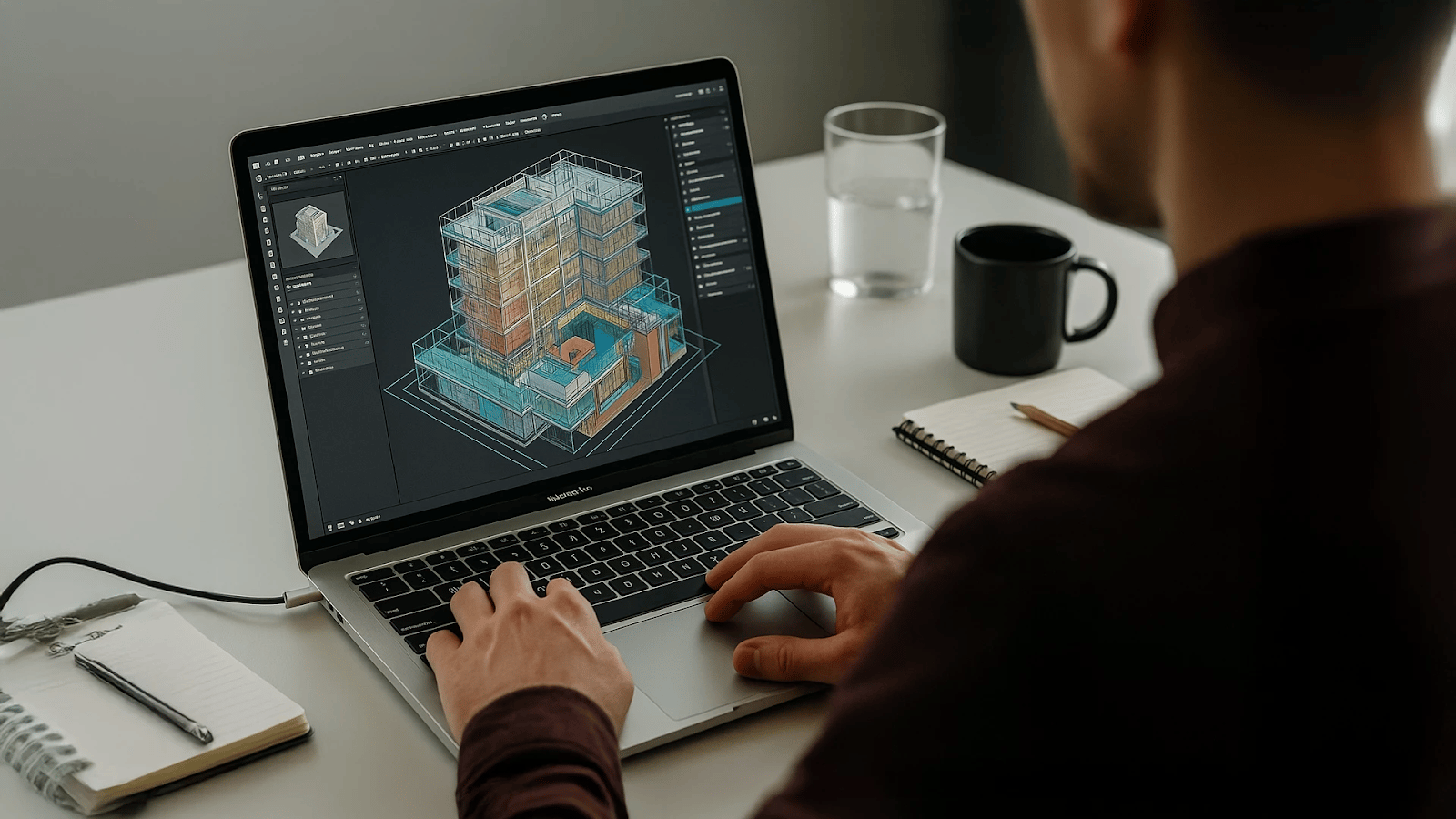
Fixing BIM 360 errors requires a systematic approach that focuses on permissions, workflows, and software usage. Most issues can be resolved by following clear steps and maintaining consistent practices.
To address common problems, consider the following:
- **Verify Permissions and Roles**Ensure users have the correct access rights. Many issues arise from restricted permissions, especially in shared project environments.
- **Check File Status and Publishing**Confirm that models and files are properly published before sharing them with teams. This ensures everyone works with updated information.
- **Maintain Clear Folder Structures**Organizing files properly reduces confusion, improves accessibility, and supports better collaboration across project teams.
- **Use Updated Models**Always work with the latest version to avoid conflicts, duplication, and outdated project data.
- **Follow Standard Workflows**Establish clear processes for model sharing, downloading, and coordination to reduce inconsistencies.
- **Monitor Model Ownership**Ensure users relinquish ownership regularly to prevent access conflicts and workflow interruptions.
- **Use Platform Tools Effectively**Leveraging built-in features helps manage files, track changes, and resolve issues quickly while improving overall efficiency.
These steps help resolve most BIM 360 issues and improve overall efficiency. They also reduce the likelihood of recurring errors in complex projects.
## **How Can You Prevent These BIM 360 Issues in Future Projects?**
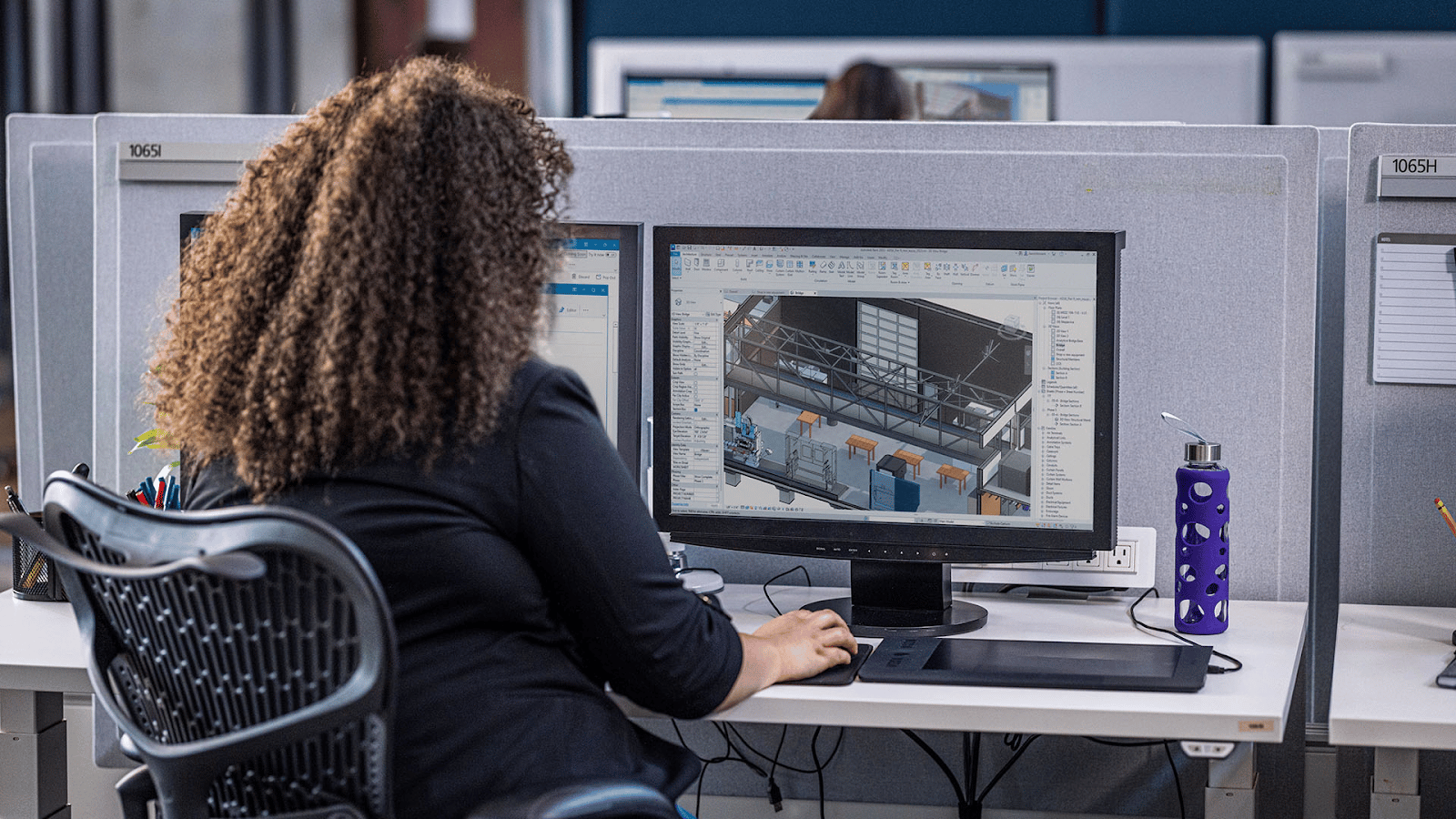
Preventing BIM 360 issues requires proactive planning, training, and consistent workflows. Teams that follow structured processes experience fewer disruptions and improved coordination.
To minimize future issues, focus on the following practices:
- **Establish Clear Workflow Guidelines**Define how models are created, shared, and updated across teams to ensure consistency.
- **Train Team Members Regularly**Ensure all users understand key functions and workflows within BIM 360 to reduce errors.
- **Standardize File Naming and Organization**Consistent naming conventions improve file management and reduce confusion across teams.
- **Assign Roles and Permissions Carefully**Proper access control ensures smooth collaboration and prevents unauthorized changes.
- **Schedule Regular Model Updates**Keeping models updated reduces conflicts and improves coordination between teams.
- **Monitor Project Data Continuously**Regular checks help identify issues early and prevent escalation during project execution.
- **Encourage Collaboration and Communication**Open communication ensures that issues are resolved quickly and workflows remain efficient.
These practices help teams avoid common problems, improve coordination, and maintain efficient workflows across projects.
Master BIM and Get Hired Faster
Join a community of 8500+ Architects and Engineers.
Explore Now
\*Limited seats available
## Conclusion
BIM 360 plays an important role in modern project delivery, but like any platform, it comes with common challenges. Understanding these issues and applying structured solutions helps teams maintain efficiency and improve collaboration.
Professionals who adopt clear workflows, manage permissions effectively, and stay updated with platform features can significantly reduce errors and improve project outcomes.
To build stronger BIM skills and handle real-world project challenges more effectively, consider enrolling in the [BIM Course for Architects](https://www.novatr.com/us/courses/building-information-modelling) offered by [Novatr](https://www.novatr.com/us). Visit our [resource page](https://www.novatr.com/learning-hub) to explore more insights, tools, and learning materials that support your professional growth.
Was this content helpful to you
Like Yes
Dislike No
.png)
TABLE OF CONTENTS
BIM Is The New Standard. Are You Certified?
Get Certified in BIM
SHARE ON YOUR SOCIALS
Link Copied Successfully
Related articles
[ Computational Design Beyond Code and Tools | Ar. Jayanaveena (Zaha Hadid Architects) 30 October 2025 4 min read](https://blog.novatr.com/blog/computational-design-beyond-code-and-tools-ar.-jayanaveena-zaha-hadid-architects) [ Why Tier-2 Cities Are Becoming India’s Next BIM Growth Hubs in 2026 23 March 2026 12 min read](https://blog.novatr.com/blog/why-tier-2-cities-are-indias-next-bim-growth-hubs) [ What are the Most Common SketchUp Queries & how to fix them? 8 April 2026 6 min read](https://blog.novatr.com/blog/common-sketchup-queries-and-how-to-fix-them) [ Infrastructure Push 2026: Why BIM Will Be Central to India’s Construction Growth 23 March 2026 5 min read](https://blog.novatr.com/blog/bim-driving-indias-infrastructure-growth)
Download Syllabus
## BIM Professional Program
Next Cohort
June 2026
Program Duration
7 Months
Premium Program benefits
8 Credentials from Autodesk, NSDC, Novatr
1 program. 10 career paths. Infinite Growth.
40+ ISO 19650 & RIBA real-world projects to practice
1-on-1 guidance. Access 400+ industry experts.
Access the biggest AEC-Tech community on the planet. 8500+ and counting
Curated for you by 100+ global BIM leaders.
Lifelong access to course content
Enter your details to download the program syllabus.
##### BIM Professional Program
June 2026, 7 Months
Your Name Invalid name.
Phone Number Enter a valid phone number
Email Please enter a valid email address.
Select years of experience\* Currently studying 0-1 years 1-2 years 2-4 years 4-8 years 8-10 years 10-12 years 12+ years Invalid selection.
Specialisation Select your background\* Architecture Civil Engineering Mechanical Engineering Electrical Engineering Invalid selection.
Are you professionally trained in interior design?
Yes
No
I agree to the [Terms of Use](https://www.novatr.com/terms-and-conditions) and [Privacy Policy](https://www.novatr.com/privacy-policy), and consent to be contacted by Email, Call, WhatsApp, or SMS.
Submit
Ready to skyrocket your career?
Begin your next chapter in AEC
with Novatr!
We are here to help you take the industry by storm with advanced, tech-first skills.
[Explore Courses](https://www.novatr.com/#courses)
Join our newsletter
Submit
Thank you for signing up.
We’ll send you a nice letter once per week. No spam.

Dare to Disrupt.
Join thousands of people who organise
work and life with Novatr.
Company
- [About Us](https://www.novatr.com/about)
- [BIM Professional Program v.2026](https://www.novatr.com/courses/bim-professional-program)
- [Masters Computational Design](https://www.novatr.com/courses/computational-design)
- [Become a Mentor](https://www.novatr.com/apply-as-mentor)
- [Hiring from Us](https://www.novatr.com/hire-from-us)
- [Careers at Novatr](https://www.novatr.com/career)
Resources
- [Blog](https://www.novatr.com/learning-hub)
- [Media Room](https://www.novatr.com/media-room-home-page)
- [Career Builder](https://www.novatr.com/career-navigator)
- [Events & Webinars](https://www.novatr.com/webinars)
- [FAQs & Support Center](https://www.novatr.com/contact-us)
- [Contact Us](https://www.novatr.com/contact-us)
- [Privacy Policy](https://www.novatr.com/privacy-policy)
- [Terms of Use](https://www.novatr.com/terms-and-conditions)
©2023 Oneistox Network Pvt. Ltd.
All Rights Reserved
```json
{
"@context" : "https://schema.org",
"@type" : "BlogPosting",
"author" : {
"@type" : "Person",
"name" : "Neha Singh",
"url" : "https://blog.novatr.com/blog/author/neha-singh"
},
"dateModified" : "2026-03-30T11:49:21.644Z",
"datePublished" : "2026-03-30T11:45:09.000Z",
"headline" : "Common BIM 360 Queries and How to Fix Them {{year}}",
"image" : [ "https://blog.novatr.com/hubfs/What%20Are%20the%20Most%20Common%20BIM%20360%20Queries%20&%20How%20to%20Fix%20Them%20(1).png" ],
"mainEntityOfPage" : {
"@id" : "https://blog.novatr.com/blog/common-bim-360-queries-and-how-to-fix-them",
"@type" : "WebPage"
},
"publisher" : {
"@type" : "Organization",
"logo" : {
"@type" : "ImageObject",
"url" : "https://blog.novatr.com/hubfs/Novatr%20Prev%20OX-2.svg"
}
}
}
```