---
title: AutoCAD Shortcuts and Productivity Hacks (2026)
description: AutoCAD shortcuts and a few practical hacks that can help you work faster, avoid small errors, and manage drafting work more smoothly.
image: https://blog.novatr.com/hubfs/Blog%20Image%20(3).png
---
[Blogs](https://www.novatr.com/learning-hub)
- [Architecture & Construction](https://www.novatr.com/learning-hub?category=Architecture+%26+Construction)
- [BIM](https://www.novatr.com/learning-hub?category=BIM)
- [Computational Design](https://www.novatr.com/learning-hub?category=Computational+Design)
- [Company News](https://www.novatr.com/learning-hub?category=Company+News)
- [Expert Talks](https://www.novatr.com/learning-hub?category=Expert+Talks)
Explore Courses
[Just Launched  BIM Professional Program v.2026 Take your career to the next level by mastering the real-world application of BIM. Know More](https://www.novatr.com/courses/bim-professional-program)
[ Master Computational Design Course Break into an advanced career by learning to apply the power of computation to the art of design. Know More](https://www.novatr.com/courses/computational-design)
[Blogs](https://www.novatr.com/learning-hub)
Explore Blogs
- [Architecture & Construction](https://www.novatr.com/learning-hub?category=Architecture+%26+Construction)
- [BIM](https://www.novatr.com/learning-hub?category=BIM)
- [Computational Design](https://www.novatr.com/learning-hub?category=Computational+Design)
- [Company News](https://www.novatr.com/learning-hub?category=Company+News)
- [Expert Talks](https://www.novatr.com/learning-hub?category=Expert+Talks)
Courses
- [BIM Professional Program v.2026](https://www.novatr.com/courses/bim-professional-program)
- [Master Computational Design](https://www.novatr.com/courses/computational-design)
- [Archi/](https://www.novatr.com/learning-hub?category=BIM)
Featured Article
# Keyboard Shortcuts and Productivity Hacks in AutoCAD

Neha Singh
April 20, 2026
5 min read
.png)

In professional design practice, speed and accuracy directly affect project timelines. Autodesk productivity studies show that using optimized workflows and features in AutoCAD software can improve task efficiency by up to [55 percent](https://www.autodesk.com/campaigns/autocad-mechanical-productivity-study) in certain tasks. It becomes especially important when working on time-sensitive architectural drawings.
Understanding what is AutoCAD is not limited to knowing commands. It also means knowing how to use those commands efficiently in real situations. Whether you are working on AutoCAD architecture drawings or trying out AutoCAD 3D modeling, being able to execute tasks quickly can make a noticeable difference. This article looks at what are the most useful AutoCAD keyboard shortcuts in 2026, along with practical ways to improve speed in AutoCAD using shortcuts and proven productivity hacks.
Unlock High-Paying Careers With BIM
Master BIM workflows, software and skills on real projects.
Apply Now
\*Limited seats available
## **What Are the Most Essential AutoCAD Keyboard Shortcuts Every Architect Must Know?**
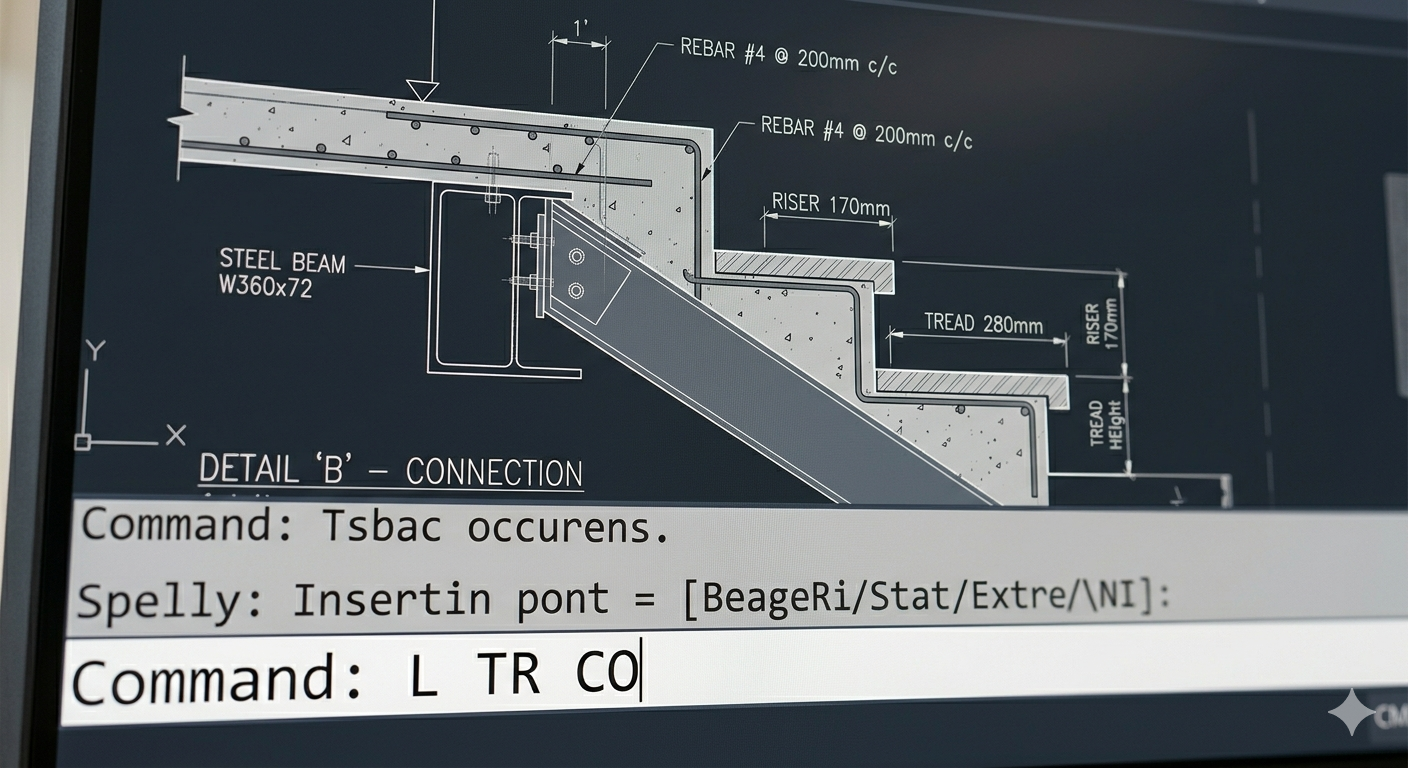
***Image:*** [*AI Generated*](https://drive.google.com/file/d/1nvu3yiNYoK9QYm03T5JGh9fQwz345HKA/view?usp=drive_link)
***Alt text:*** *AutoCAD shortcut keys*
Most architects start using AutoCAD shortcut commands early, but not everyone uses them consistently. That is where the gap usually appears. Knowing a shortcut is one thing; actually using it every day is another.
Some of the most useful shortcuts that recur in AutoCAD design work are listed below. Most of these are simple, but they get used a lot once you get comfortable with them:
- L is used for Line and comes up in almost every drawing
- For circles, most people just type C instead of searching for the tool
- REC is commonly used when working on layouts or basic planning
- TR helps clean up extra lines, and EX is often used right after it
- CO is useful when you need multiple copies of the same element
- M is for Move, while RO is used when something needs to be rotated slightly
- SC is generally used when resizing elements to match proportions
- CTRL + Z and CTRL + Y are used so often that they become second nature
There are also a few commands that are not always used in the beginning but become important later:
- XL is helpful when setting up reference or guide lines
- H is used for Hatch, especially in AutoCAD architecture drawings
- DI is mainly used when checking distances during or after drafting
These shortcuts work in both 2D drafting and AutoCAD 3D. They are not memorized by a majority of the users.They just get used to them over time while working.
In the end, what are the most useful AutoCAD keyboard shortcuts in 2026 will depend slightly on the type of work, but these form a solid base for almost everyone.
## **How Do AutoCAD Keyboard Shortcuts Help You Draft Faster and Smarter?**
At first, shortcuts just feel like a quicker way to run commands. But after some time, they start changing how you work altogether.
One noticeable difference is the reduction in small interruptions. Instead of moving the cursor around the screen again and again, commands are typed and executed almost instantly. That alone improves flow, at least once you get used to it.
Here is how to use keyboard shortcuts in AutoCAD efficiently:
- Less mouse movement overall, so you are not going back and forth all the time
- Commands get entered quicker, especially the ones used again and again
- You stay on the drawing more instead of searching for tools
- Muscle memory builds up gradually
- Switching between commands feels easier after a while
There is also a subtle benefit. After some time, shortcuts change how you think about the work. You start thinking in terms of actions rather than tools.
For example, instead of looking for Trim, you just type TR and move on. It sounds minor, but it saves time across hundreds of actions.
Another point worth noting is consistency. Repeating the same command patterns leads to fewer mistakes. This is specifically useful when doing detailed AutoCAD design.
Which then are the most time-saving AutoCAD shortcuts? The ones that you repeat are usually used many times. Good examples are Trim, Copy, Move and Extend.They appear in almost every drawing session.
## **What Are the Best AutoCAD Productivity Hacks for Repetitive Drawing Tasks?**
Repetition is part of drafting. Walls, doors, grids, and annotations keep coming up, and without a proper approach, they can be time-consuming.
This is where these productivity hacks actually help:
- Creating blocks for elements that are used repeatedly
- Using dynamic blocks instead of making new versions every time
- Keeping layers organized so editing later becomes easier
- Relying on object snaps to avoid small errors
- Using selection filters when drawings get complex
- Applying match properties instead of fixing things one by one
- Keeping quick properties on to speed up small changes
These drafting tips may seem minor at first, but they help reduce a lot of repetitive effort, especially in AutoCAD architecture work. If you are trying to improve speed in AutoCAD using shortcuts, combining them with these productivity hacks usually works.
## **How Do You Customize AutoCAD Shortcuts and Tool Palettes for Your Workflow?**
Not everyone works the same way, and AutoCAD allows a fair amount of flexibility in that sense. Customization is often ignored at the beginning, but it becomes useful over time.
Here are a few ways to adjust the software according to your workflow:
- Editing shortcuts through the Customize User Interface editor
- Changing command aliases in the acad.pgp file
- Creating tool palettes for frequently used blocks or commands
- Rearranging workspace layout based on preference
- Adjusting the ribbon to keep important tools visible
Customization does not need to be complicated. Even small changes can make AutoCAD software easier to use on a daily basis.
## **How Do AutoCAD Macros and Scripts Help Automate Repetitive Workflows in 2026?**
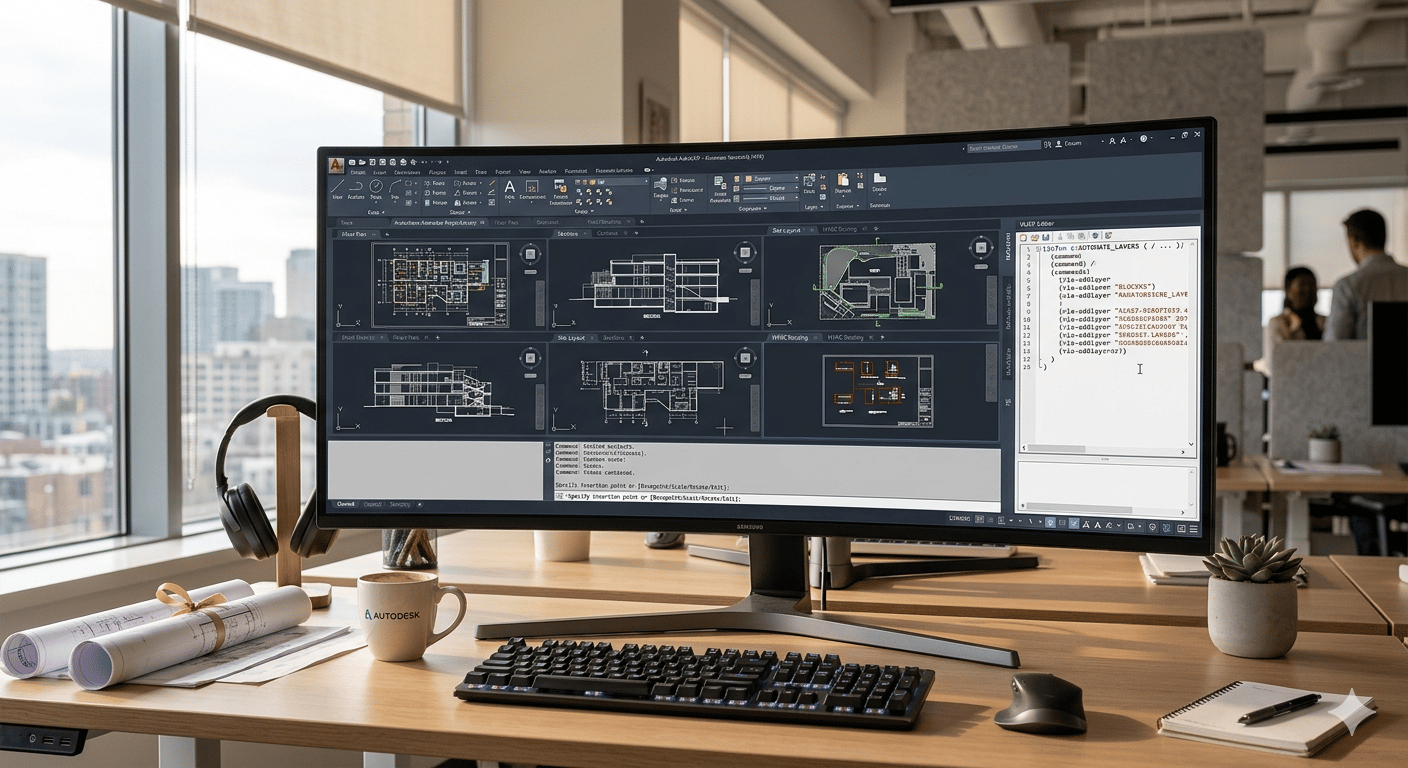
Automation is slowly becoming part of regular drafting practice. It is no longer limited to advanced users. Macros and scripts help reduce manual work by handling repetitive steps in the background.
They are usually used in simple ways:
- Macros combine a few commands into one action
- Script files help run tasks across multiple drawings
- The Action Recorder can capture a process and replay it
- LISP routines are used for more advanced customization
These tools save time on repeated setup, keep drawings consistent, and reduce small errors. In many workflows, especially in AutoCAD 3D and AutoCAD architecture projects, this kind of automation is becoming common.
Master BIM and Get Hired Faster
Join a community of 8500+ Architects and Engineers.
Explore Now
\*Limited seats available
## **Conclusion**
AutoCAD shortcuts and productivity hacks improve drafting speed and workflow. The change is gradual, but over time, it makes daily work more efficient.
To strengthen your expertise, you can consider enrolling in the [Revit and BIM Online Certification Course](https://www.novatr.com/courses/building-information-modelling) by [Novatr](https://www.novatr.com/). It can help you build confidence in using your skills in practical settings and improve your chances within the AEC industry.
You may also check out the [resources page](https://www.novatr.com/learning-hub) for more information and learning materials that can support your professional development.
## **FAQs**
### **1. How do AutoCAD keyboard shortcuts help architects and designers save time on daily drafting tasks?**
They minimize the use of the toolbar and allow you to run commands. It makes you work quicker and does not enable the flow to be interrupted.
### **2. What is the difference between AutoCAD default shortcuts and custom user-defined shortcuts?**
Default shortcuts are already set in AutoCAD. Custom ones are adjusted by users so they fit better with how they prefer to work.
### **3. How can architects create and save custom keyboard shortcuts in AutoCAD for repetitive commands?**
You can do it from the acad.pgp file or the Customize User Interface editor. Once set, they stay saved in your workspace.
Was this content helpful to you
Like Yes
Dislike No
.png)
TABLE OF CONTENTS
BIM Is The New Standard. Are You Certified?
Get Certified in BIM
SHARE ON YOUR SOCIALS
Link Copied Successfully
Related articles
[ Best Features of SketchUp Architects Should Be Using 8 April 2026 5 min read](https://blog.novatr.com/blog/best-features-of-sketchup-architects-should-be-using) [ Building Information Modelling BIM vs CAD: Why Architects Are Making the Shift to Smarter Design 19 April 2025 5 min read](https://blog.novatr.com/blog/bim-vs-cad-why-architects-are-making-the-shift-to-smarter-design) [.png) MEP MEP Modelling in Revit: Faster and Smarter System Design 12 May 2026 5 min read](https://blog.novatr.com/blog/mep-modelling-in-revit-for-faster-system-design) [ Revit vs Navisworks: Which Tool Does What in BIM MEP Workflows? 18 June 2025 12 min read](https://blog.novatr.com/blog/revit-vs-navisworks-in-bim-mep-workflows)
Download Syllabus
## BIM Professional Program
Next Cohort
June 2026
Program Duration
7 Months
Premium Program benefits
8 Credentials from Autodesk, NSDC, Novatr
1 program. 10 career paths. Infinite Growth.
40+ ISO 19650 & RIBA real-world projects to practice
1-on-1 guidance. Access 400+ industry experts.
Access the biggest AEC-Tech community on the planet. 8500+ and counting
Curated for you by 100+ global BIM leaders.
Lifelong access to course content
Enter your details to download the program syllabus.
##### BIM Professional Program
June 2026, 7 Months
Your Name Invalid name.
Phone Number Enter a valid phone number
Email Please enter a valid email address.
Select years of experience\* Currently studying 0-1 years 1-2 years 2-4 years 4-8 years 8-10 years 10-12 years 12+ years Invalid selection.
Specialisation Select your background\* Architecture Civil Engineering Mechanical Engineering Electrical Engineering Invalid selection.
Are you professionally trained in interior design?
Yes
No
I agree to the [Terms of Use](https://www.novatr.com/terms-and-conditions) and [Privacy Policy](https://www.novatr.com/privacy-policy), and consent to be contacted by Email, Call, WhatsApp, or SMS.
Submit
Ready to skyrocket your career?
Begin your next chapter in AEC
with Novatr!
We are here to help you take the industry by storm with advanced, tech-first skills.
[Explore Courses](https://www.novatr.com/#courses)
Join our newsletter
Submit
Thank you for signing up.
We’ll send you a nice letter once per week. No spam.

Dare to Disrupt.
Join thousands of people who organise
work and life with Novatr.
Company
- [About Us](https://www.novatr.com/about)
- [BIM Professional Program v.2026](https://www.novatr.com/courses/bim-professional-program)
- [Masters Computational Design](https://www.novatr.com/courses/computational-design)
- [Become a Mentor](https://www.novatr.com/apply-as-mentor)
- [Hiring from Us](https://www.novatr.com/hire-from-us)
- [Careers at Novatr](https://www.novatr.com/career)
Resources
- [Blog](https://www.novatr.com/learning-hub)
- [Media Room](https://www.novatr.com/media-room-home-page)
- [Career Builder](https://www.novatr.com/career-navigator)
- [Events & Webinars](https://www.novatr.com/webinars)
- [FAQs & Support Center](https://www.novatr.com/contact-us)
- [Contact Us](https://www.novatr.com/contact-us)
- [Privacy Policy](https://www.novatr.com/privacy-policy)
- [Terms of Use](https://www.novatr.com/terms-and-conditions)
©2023 Oneistox Network Pvt. Ltd.
All Rights Reserved
```json
{
"@context" : "https://schema.org",
"@type" : "BlogPosting",
"author" : {
"@type" : "Person",
"name" : "Neha Singh",
"url" : "https://blog.novatr.com/blog/author/neha-singh"
},
"dateModified" : "2026-04-20T09:22:01.302Z",
"datePublished" : "2026-04-20T09:16:40.000Z",
"headline" : "AutoCAD Shortcuts and Productivity Hacks ({{year}})",
"image" : [ "https://blog.novatr.com/hubfs/Blog%20Image%20(3).png" ],
"mainEntityOfPage" : {
"@id" : "https://blog.novatr.com/blog/autocad-shortcuts-and-productivity-hacks",
"@type" : "WebPage"
},
"publisher" : {
"@type" : "Organization",
"logo" : {
"@type" : "ImageObject",
"url" : "https://blog.novatr.com/hubfs/Novatr%20Prev%20OX-2.svg"
}
}
}
```